 WorkShift HQ
Documentation
How WorkShift HQ works
A public preview of staff guides and selected setup and management topics. Sign in to access the full operational guide for your role.
Quick start: your first day
Four steps, no reading required — the full guide below is there if you want more.
- Accept your invite — open the link in your invite email and create your account (or sign in if you already have one).
- Use the portal, or your manager’s approved app route — use the web portal in your browser, or ask your manager how to install WorkShift HQ Staff. The app is built for iOS/Android; public app-store availability is not confirmed here. Both show your published schedule.
- Find your shifts — your upcoming shifts show the date, time, and position for each one.
- Request time off — submit it from Time Off and check your manager’s approval or decline.
Your schedule, your tools
Staff members have two ways into WorkShift HQ, and they show the same information: the employee portal in any browser, and the WorkShift HQ Staff app on iOS and Android. The portal includes shifts and time clock, plus tabs for Time Off, Availability, To-Dos, News, Documents, and Team. Your sign-in email links your account to your staff record and is where your monthly schedule email arrives. If your account is not linked, ask your manager to connect it in Settings → Staff Accounts.
Portal: My Schedule
My Schedule is your home page in the portal. It shows the time clock card, upcoming shifts with the date, start and end time, and position, plus any open shifts you can claim. From here you can jump to Time Off, Availability, To-Dos, News, Documents, and Team. Some tabs only appear if your manager enabled them. Only managers can change the schedule.
Portal: Time Off
Submit a request by choosing a start and end date and adding an optional reason. Each request shows as requested, approved, or declined; you can withdraw a pending request if plans change. When time off is approved, managers get a conflict warning if they try to schedule you during those dates.
Portal: Availability
Availability is your weekly working pattern — for example, Tuesdays 9:00–15:00 or weekends all day. Add, edit, or remove windows for each weekday. Managers see the pattern when scheduling and get a warning for a shift outside it. Days where you haven’t set anything are treated as open. Use Availability for your usual week and Time Off for specific dates.
Clocking in & out
Once your account is linked to a staff record, a time clock card appears at the top of My Schedule and the mobile app’s Shifts tab. Tap Clock in when you start and Clock out when you finish. Your punches become timesheet entries that managers review. If you forget to clock out, the entry is flagged for a manager to fix.
Shift covers & open shifts
On an upcoming shift, tap Request cover to offer it to coworkers who hold the same position and have no conflict. Shifts needing cover and open shifts posted by managers appear on your portal home page and in the mobile app. Tap Claim to put your hand up; a claim is not final until a manager approves it. You’ll be notified of the decision and the schedule updates automatically.
To-Dos, News, Documents & Team
- To-Dos — manager-assigned tasks with due dates; mark them done as you go.
- News — announcements from managers; confirm receipt when asked.
- Documents — view or download handbooks, forms, and other files shared with the team.
- Team — coworkers’ names and positions. Managers control which areas each staff member can see.
Mobile app & signing in
WorkShift HQ Staff is a staff-focused companion. Ask your manager for the supported install route; public app-store availability is not confirmed. Sign in with your roster email and one-time email code. Bottom navigation is Shifts, Requests, Messages and More. Requests groups Time off and Availability; More opens permitted Tasks, News, Team, read-only Team calendar, Documents and Profile screens. Phone screenshots here use Expo web, not native devices.
Mobile: Shifts tab
The Shifts tab is the app’s home screen: the time clock card, then upcoming shifts in order with each date, start and end time, and position. Shifts needing cover show a badge; request cover on your own shifts or claim an open one from the list. The list reflects the schedule managers have published.
Mobile: Team screen
Open Team from More for permitted coworker information and upcoming team shifts. Use it to coordinate a shift or ask a work question.
Mobile: Calendar screen
Open Team calendar from More for a read-only view of the published team schedule when your manager has enabled access. It helps you see the wider workday without changing anyone’s schedule.
Mobile: Time Off screen
Open Time off from Requests to submit a request with a date range and optional reason, then follow its status from requested to approved or declined. Pending requests can be withdrawn from the same screen.
Mobile: Tasks screen
Open Tasks from More for the to-dos your manager assigns. Open a task for its details and mark it done when the work is complete.
Mobile: Announcements screen
Open News from More to read announcements from managers and confirm receipt when asked.
Mobile: Messages tab
The Messages tab includes the shared Everyone channel and direct conversations with managers or coworkers. New messages show an unread badge; push notification availability depends on your device.
Mobile: Availability screen
Open Availability from Requests to add or remove weekly windows for when you can work. Changes save to the workspace so managers see them while planning.
Mobile: Profile screen
Open Profile from More for roster details, your shareable profile link and calendar subscription link. If information is out of date, ask a manager to correct the Staff Roster.
Messages: chatting with your team
Messages is built-in chat in the portal and mobile app. Every workplace has an Everyone channel, plus one-to-one direct messages. You can always message managers directly; coworker messages depend on workspace settings. New messages appear without refreshing, and unread counts show on the Messages tab. Messages are conversations; official notices needing read-confirmation arrive under News.
Shareable profile links
Every staff member has a personal profile link. Managers copy it from the roster; staff find theirs under More → Profile. It opens a public profile page before sign-in. The public page shows basic profile information only; sign in to see shifts or submit requests. Share links carefully because they are public.
Quick start: launch checklist
- Set up operations — positions, locations, branding, business hours and staffing targets.
- Invite staff — add positions, contact details, permissions and sign-in access.
- Plan privately — use Employee week, availability and approved time off.
- Review and publish — review changed fields and conflicts; Publish all changes covers the whole workspace.
- Share published schedules — export or manually resend published monthly schedules. Email-provider submission is not proof of delivery.
Getting started
Set up positions and business hours, add staff to the roster, build a private plan in Employee week and review changes. Publish all changes releases the whole workspace schedule. Exports and manual monthly schedule-email resends use published shifts only; provider submission does not prove delivery.
Importing your data
Owners and managers can bring staff and shifts in from a CSV, TSV or Excel file, or from a 7shifts, Homebase, When I Work or Deputy export, using Staff → Import or Settings → Import data. Columns are matched automatically and can be changed; the preview shows every row as Create, Update, Skip or Not imported before anything is saved. Imported shifts are private drafts and nobody is notified until you use Review changes and Publish all changes. Owners can also create an API key for the Import API or the MCP server.
Dashboard & Needs Attention
The dashboard is your morning check-in. Needs Attention gathers pending time-off requests, staff who cannot receive schedule emails and email-domain warnings. Today lists today's shifts. The coverage-percentage card links to Coverage for exact gap periods and Find people. Choosing a person opens a shift form for review; saving remains private until publication.
Calendar: scheduling shifts
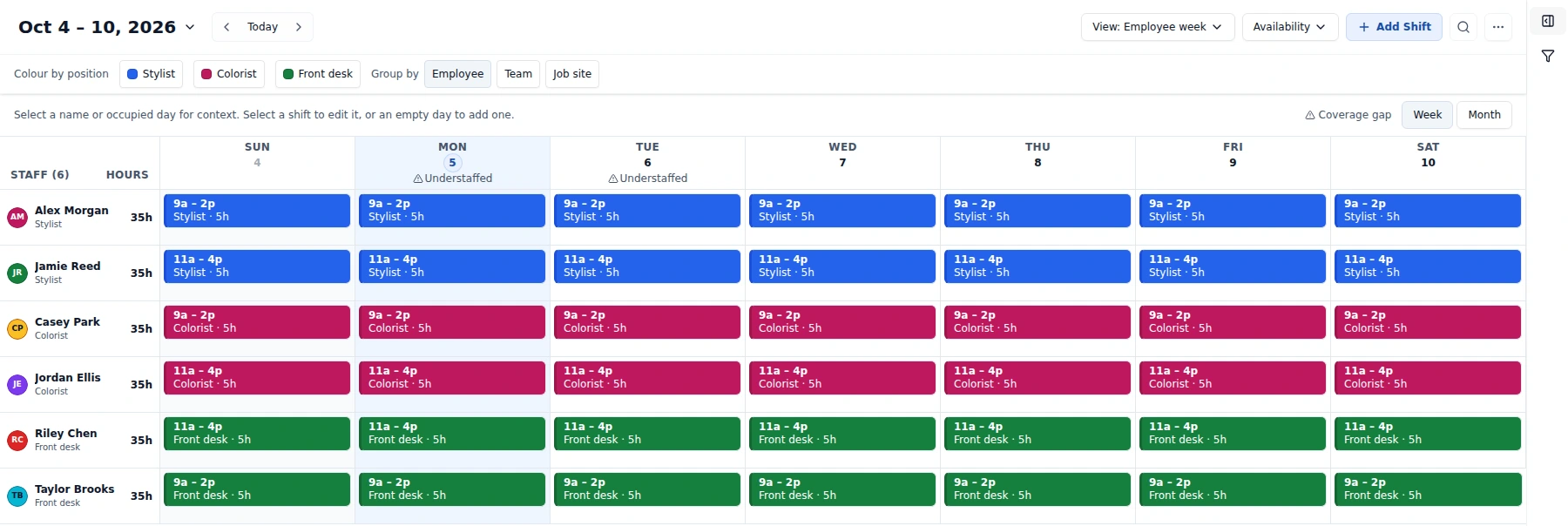
- Choose the right view — Open Calendar in Employee week to see one row per employee. View switches to Day, Week (hourly), Month or permitted Workload. The unified sidebar highlights the selected Filters or Content tab. Position, status, team and location filters, grouping and the interactive legend change what you see, not assignments or publication scope.
- Check the planning inputs — Open Time off, Availability or Coverage gaps under Content in the collapsible sidebar. Expand a position group for employee details. The Availability control opens the availability calendar or weekly-pattern editor. Review recurring patterns, date-specific availability and approved leave before assigning shifts. Unset availability is treated as open; ask staff to enter their constraints. Detailed coverage also lives on Coverage, linked from Dashboard’s percentage card.
- Build your private plan — Add or edit shifts and review conflicts before saving. Auto-draft suggests assignments for the selected week, location and team. Keep suggestions retains them in the private plan without publishing or notifying staff.
- Review, then publish — Open Review changes for the simplified workspace-wide summary. Inspect additions, edits and removals; expand Full shift details or Coverage comparison when needed. Resolve displayed conflicts and review scheduled-hours advisories. Publish all changes applies across the whole workspace—all dates and locations, not just your current filters. Publication makes the reviewed schedule visible to staff and queues change notices according to notification settings and preferences.
- Resend only the published schedule — Use Send published schedules from the calendar sharing menu when you want to resend a published month. Preview eligible recipients and skips before sending personal emails with ICS attachments. Valid staff addresses and configured email delivery are required; provider submission is not confirmation of inbox delivery. PDF and PowerPoint exports also use published shifts; private changes remain private. Solo allows two combined exports per calendar month; paid plans allow unlimited exports.
Staff Roster
Add people to the staff roster with their positions and contact details, invite them to sign in, and manage the team information used by schedules and staff access.
Time Off approvals
Review staff requests and approve or decline them so availability and schedule planning stay aligned. Pending requests also appear in the dashboard's Needs Attention panel.
Availability
Staff availability gives managers context when building schedules. Review the team's submitted availability alongside time-off requests before assigning shifts.
Tasks board
Use tasks to organize work for the team and give staff a shared place to see assigned to-dos.
Document hub
Upload and organize team documents, then manage staff access and acknowledgment records from the document hub.
Free public tools
Two free, no-sign-up tools are available outside a workspace; nothing entered is uploaded to a server. The labor cost calculator estimates weekly and monthly costs from hourly rates and weekly hours, with optional overtime. The weekly schedule template is a Monday–Sunday grid you can print or save as a one-page PDF; rows are kept in the visitor’s browser only.
Running the business here
Owners use the same web app as managers, with additional business-level setup for workspace identity, roles, locations and billing. Each workspace is separate from other businesses on WorkShift HQ.
Workspace setup & branding
Settings → General contains the workspace identity: business name, timezone and week start day, logo and brand colour. These settings shape the app, exports and schedule emails.
Business hours & staffing targets
Set opening and closing times or mark a day closed. Set a minimum staff count, and optionally targets by position. Coverage warnings compare schedules with these targets; closed days are excluded from coverage checks.
Job positions
Positions describe what a person does and apply workspace-wide. Staff members and shifts use positions; calendar filters and staffing targets can be configured around them. Deactivate a position to keep its history while removing it from new forms.
Locations
Locations model where work happens. Assign staff and shifts to a home location, set optional per-location business hours and staffing targets, and use location filters in the calendar.
This preview does not include role-restricted management, owner, or developer documentation.