Roles for the studio
Create positions for instructors, reception, support, and opening or closing responsibilities.
 WorkShift HQ
Back to home
For fitness and wellness teams
WorkShift HQ helps fitness and wellness businesses coordinate instructors, front desk teams, support roles, time off, communication, and worked hours.

A practical fit
Map your team into the positions that make your studio run, then build a week that accounts for availability and time off. Staff can check their shifts from their phone while managers keep announcements, tasks, and documents organized.
Create positions for instructors, reception, support, and opening or closing responsibilities.
Share announcements and direct messages so schedule updates have a clear home.
Use the time clock, timesheets, and labor-cost reports to spot patterns.
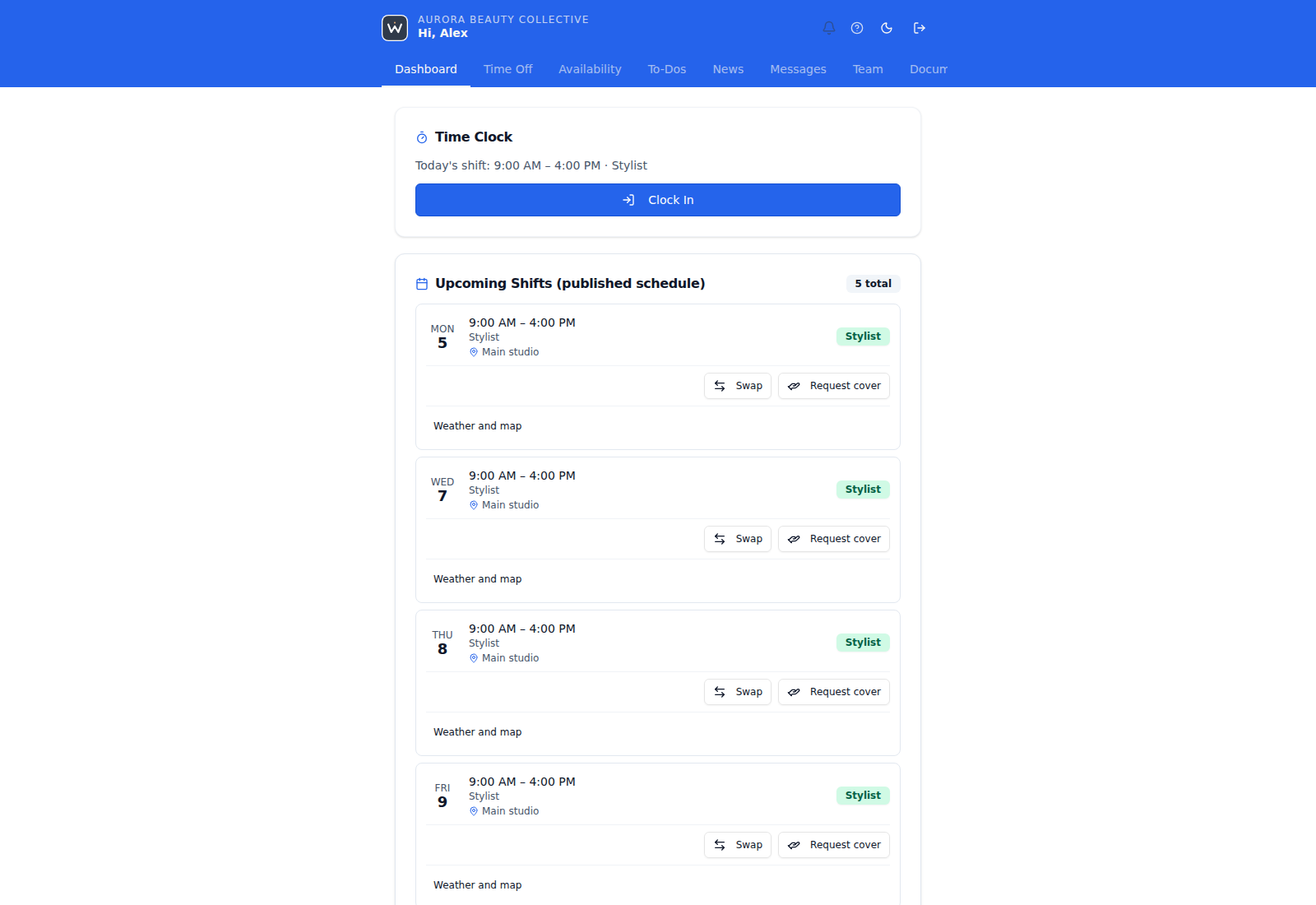
Instructors check their published staffing shifts on the web portal.
A clear source for when to arrive; class booking remains a separate workflow.
Part-time coaches share when they can work.
Review submitted patterns; unset availability is treated as open.
Punches sit beside scheduled time on timesheets.
Managers review differences with context.
Schedules are planned privately, reviewed, then published as a whole workspace. Sending published schedules by email is a separate step, and you can resend later.
Self-service
Unset availability is treated as open, so ask staff to set it.
Review submitted availability while planning shifts.
Time off
Approved leave blocks conflicting shifts with a warning.
Review approved leave when planning class coverage.
Tasks
Studio set-up steps are tied to the team.
Routine work is easier to hand over.
Time and cost
Pay views follow owner-granted permissions.
Cost context without wide pay access.
Yes. Set up staff, positions and business hours, collect availability, then build a private plan. Review changes before publishing all workspace changes. You can import staff and draft shifts from a spreadsheet or another scheduling tool’s export; start with a manageable period.
Staff can use the browser portal. Ask the manager for the approved companion-app install route if you prefer it. Requests and other tools depend on individual permissions; internet access is required.
No. Keep booking, specialist industry tools, accounting and payroll in their own systems. WorkShift supports staffing decisions, coordination and reviewed hours; it does not certify staffing sufficiency or run payroll.
Check configured staffing targets, then review all workspace changes before publication. Publication can queue change notices; monthly schedule-email resends are separate.
01
Place shifts around staff, availability, time off, roles, hours, and locations.
02
Compare the plan with configured targets and inspect exact gaps before assigning.
03
Check private edits and conflicts across the workspace before you publish.
04
Make the reviewed workspace schedule visible to staff.
05
Staff can check published shifts in the app or portal; email is a separate step.
Staff self-service tools depend on per-person permissions; cover claims need manager approval. Owners and individually pay-approved managers can review pay reports. Time-clock records need review and do not process payroll. Solo and Studio support one location; Salon supports multiple locations. Email and optional opted-in text alerts require configured providers. Ask your manager for the current approved staff-app install route; public app-store availability is not confirmed.
WorkShift HQ