 WorkShift HQ
Product · Scheduling
Staff scheduling and coverage
Make a plan before making a promise. See availability and coverage while you assign shifts, then review the whole workspace before staff see the changes.

Start with the real constraints
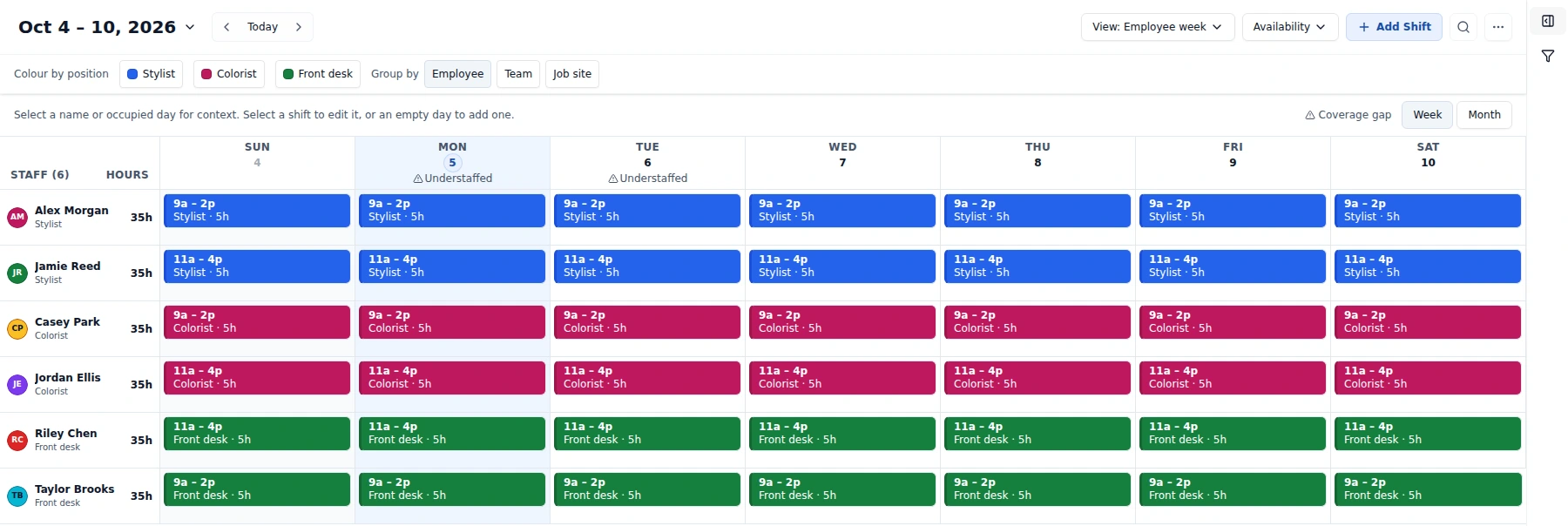
Before placing a shift, review the role it needs, the hours your business is open, the people available, and any approved time off. Staff can maintain a recurring weekly availability pattern and submit date-specific time-off requests. Unset availability is treated as open, so ask employees to enter their usual constraints before relying on the signal.
Configure minimum staffing targets for a day and, when useful, for a position. Coverage warnings compare planned shifts with those targets. They help spot a gap; they cannot tell whether the mix of skills, experience, or service demand is sufficient.
Already keep your roster or schedule in a spreadsheet or another scheduling tool? Import staff and draft shifts from a CSV or Excel file, or from another tool’s export. Every row is previewed before anything is saved, and imported shifts stay private until you publish. CSV downloads elsewhere in the app are report exports, and ICS feeds or attachments are calendar outputs for staff.
Plan privately, review, then publish
Schedule changes are planned privately first. Use Review changes to check the whole workspace plan, then Publish all changes to make it visible to staff; publishing applies to the whole workspace, not one shift at a time. Sending published schedules by email is a separate step, and you can resend after later changes.
Keep suggestions saves generated shifts in your private plan without publishing or notifying staff. Review changes and Publish all changes remain workspace-wide.
When enabled, scheduled-hours warnings are optional, workspace-configured advisories shown in review. They do not replace the separate hard maximum-hours limit, set a universal hours threshold, calculate overtime or payroll, or determine legal compliance.
Place and review shifts
Use the calendar to assign employees, positions, dates, times, and locations. Calendar views and filters help managers look at a month, week, day, or workload pattern without losing sight of the rest of the schedule.
When a save conflicts with overlapping work, approved time off, or an availability window, the app surfaces a warning. Review the details before proceeding. The warning is not a substitute for local labor rules, break planning, qualifications, or a manager’s judgment.
Work with more than one location
Locations belong to one shared workspace: the roster, schedule, and subscription stay together, while a location can have its own opening hours and coverage targets. Assign shifts and staff to locations so planning and supported location reporting retain that context.
Solo and Studio support one location each. The Salon plan supports unlimited locations. A business that needs location-by-location planning should account for that plan requirement before setting up its operation.
Share the schedule once it is ready
Managers can preview schedule-email recipients and skipped employees before sending monthly personal schedule emails with calendar attachments. Staff can also consult the browser portal, the WorkShift HQ Staff app, or their individual ICS calendar feed.
A PDF or PowerPoint export gives the team a printable or editable view. Solo exports are capped at two combined exports each calendar month; Studio and Salon include unlimited exports. A calendar subscription is a feed for a person to keep private, not a public team calendar.
Where the workflow stops
WorkShift HQ organizes scheduling and flags known conflicts; managers still decide assignments and are accountable for reviewing the published schedule. There is no promise that a coverage indicator knows a business’s demand forecast, worker qualifications, or every applicable scheduling rule.
Pricing and account access vary by plan and role. Start with the public guide for an overview, compare current plan limits, or create a free Solo workspace to assess the workflow with your own team.
Try WorkShift HQ with your own team
Build a schedule, share it with your staff, and keep an eye on hours in one place.